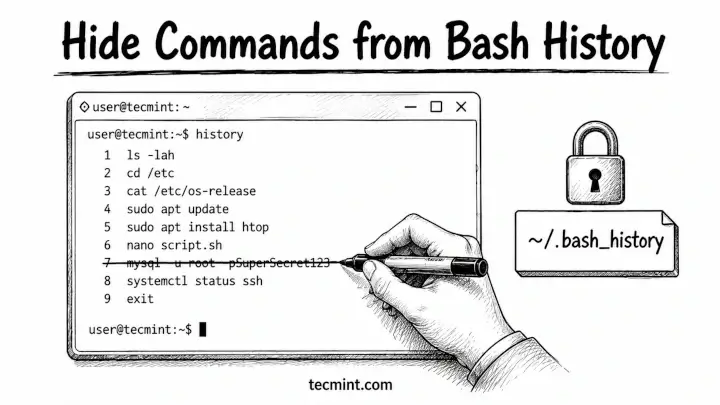
Every Linux user eventually runs a command they’d rather not preserve – a curl with a hardcoded password, an export with an API key, or a one-liner that would confuse any sysadmin who read it three months later. Knowing how to control what ends up in your bash history is as much a security habit as locking down SSH.
You’ve probably been there: you paste a command with a password embedded, hit Enter, and immediately wonder how many places that string just landed. Bash stores every command you type in ~/.bash_history by default, and on most systems, that file is readable by anyone who can access your account. And if you’re sharing a server with other admins, that history file is the first place anyone looks when something breaks.
The good news is that Bash gives you precise control over what it saves, when it saves it, and how to scrub individual entries.
How Bash Stores Command in History
Before you can control history, you need to understand when Bash writes it. For example, during a session, every command goes into an in-memory history list first.
When the session ends cleanly, that list gets appended to ~/.bash_history on disk, which matters because if your terminal crashes or you close it with kill, nothing from that session gets saved.
The key variables that govern this behavior live in your shell environment, and you can check them right now:
echo $HISTFILE
echo $HISTSIZE
echo $HISTFILESIZE
Output:
/home/ravi/.bash_history
1000
2000
Let me explain the command output:
HISTFILEis where history gets written on exit.HISTSIZEcontrols how many commands the in-memory list holds per session.HISTFILESIZEcontrols how many lines the history file can grow to on disk.
Most distros default to 1000 in-memory and 2000 on disk, so your file keeps the last 2000 commands across all previous sessions. Understanding that gap between “in memory” and “written to disk” is what makes the next few techniques work cleanly.
How to Prevent a Command from Being Saved in Bash History
The easiest way to stop Bash from saving a command in your history is surprisingly simple, just add a space before the command.
For example, when you type a command like this, it gets saved in your history.
export API_KEY="supersecretkey123"
But if you add one space at the beginning:
export API_KEY="supersecretkey123"
Bash won’t record this line at all, as long as HISTCONTROL includes ignorespace.
So, firt check whether it’s already set:
echo $HISTCONTROL
Output:
ignoredups:ignorespace
If you see ignorespace or ignoreboth in the output, you’re already covered.
If the variable is empty or missing, add this to your ~/.bashrc:
export HISTCONTROL=ignorespace
Then reload it:
source ~/.bashrc
Delete a Specific Command from Bash History
The leading-space trick only works before you run a command, but if you already ran something and want it gone, use history -d with the line number:
For example, first, list your bash history.
history
Output:
497  sudo systemctl restart nginx
  498  export DB_PASS="hunter2"
  499  curl https://api.example.com/token
  500  ls -la /etc/nginx
To delete line 498:
history -d 498
Output:
497  sudo systemctl restart nginx
  499  curl https://api.example.com/token
  500  ls -la /etc/nginx
The entry is gone from the in-memory list, but you’re not done yet. That deletion only lives in memory until the session ends. When Bash writes history to disk on exit, the gap closes, and your ~/.bash_history file won’t have the entry either, as long as you don’t run history -a manually before closing the terminal.
If you want to scrub the on-disk file immediately without waiting for the session end, run history -w after the deletion:
history -w
This writes the current in-memory list (without the deleted entry) directly to ~/.bash_history, overwriting whatever was there before.
Ignore Duplicate Commands in Bash History
Repeated commands like ls, cd, clear, or git status fill up history fast and make it harder to find the commands you actually care about.
Set HISTCONTROL to ignoredups and Bash will skip any command that matches the one immediately before it:
export HISTCONTROL=ignoredups
To combine both behaviors – ignore leading spaces and duplicates – use ignoreboth:
export HISTCONTROL=ignoreboth
Add this to your ~/.bashrc so it persists across sessions:
echo 'export HISTCONTROL=ignoreboth' >> ~/.bashrc
source ~/.bashrc
Stop Saving Certain Commands in Bash History
The HISTCONTROL handles the space-prefix trick and duplicates, but HISTIGNORE lets you define specific patterns that Bash always skips. Any command matching a pattern here never enters the history list at all:
export HISTIGNORE="ls:ls -la:cd:pwd:clear:history:exit"
Each pattern is separated by a colon. You can use glob-style wildcards too, so export * would suppress every export command:
export HISTIGNORE="ls*:cd*:pwd:clear:history:export *:curl *token*"
Add it to ~/.bashrc to make it permanent, and source the file again. Be careful not to make the patterns too broad; if you ignore sudo *, you’ll lose the audit trail for every privileged command you’ve ever run, which creates a different kind of problem.
Turn Off Command History Temporarily
Sometimes you want to work on a server without leaving any trace at all such as setting up credentials, auditing a config, or doing incident response on a shared box.
Set HISTFILE to /dev/null for the current session:
export HISTFILE=/dev/null
From that point forward in the session, nothing gets written to disk. The in-memory list still builds up (so you can use the up arrow), but when the session ends, the in-memory list evaporates instead of being flushed to a file.
You can also combine this with unset HISTFILE if you want to be explicit, but pointing to /dev/null is the more portable approach and works the same way on every distro.
How to Clear the Entire History File
To start clean, delete the full history file and remove all past commands.
history -c && history -w
history -cclears the in-memory history list for the current session.history -wthen writes that empty list to~/.bash_history, overwriting the file.
After running this, cat ~/.bash_history returns nothing. The && operator means the second command only runs if the first succeeds, so you won’t accidentally clear the file mid-session if something goes wrong.
.bash_history with vim.Conclusion
You now have 5 distinct ways to control bash history: the leading-space trick for one-off sensitive commands, history -d for post-run cleanup, HISTCONTROL for ignoring duplicates and spaces globally, HISTIGNORE for permanent pattern-based exclusions, and HISTFILE=/dev/null for session-wide suppression.
Start with adding export HISTCONTROL=ignoreboth to your ~/.bashrc right now. Then think about what patterns belong in your HISTIGNORE.
If you’re regularly exporting tokens or running curl with auth headers, those belong there. It takes 5 minutes and saves you from cleaning up sensitive data later.
Have you ever found a password or API key in someone else’s bash history on a shared server? What was the situation and how did you handle it? Tell us in the comments below.