Ctrl+R and fc let you find, recall, and edit any command from your bash history in seconds, and here’s how to stop retyping the same long commands from scratch with bash history and terminal shortcuts you already have.
Most Linux users know their shell saves command history, but the way they use it isn’t very efficient. You type a long command, memorize flags, re-enter file paths, and sometimes forget small details like a trailing slash, then you have to fix it and try again.
When you want to reuse a command, you keep pressing the up arrow until you find it. That works if the command was recent, but it quickly becomes frustrating if it was run hours ago.
Thankfully, Bash provides two built-in tools that make this much easier. Once you start using them, you won’t need to rely on endlessly pressing the up arrow just to find and reuse old commands.
In this guide, we’ll explain how Ctrl+R reverse search works, how to use fc to edit commands in your editor, and how to stop retyping long commands in Linux.
Use Ctrl+R to Quickly Find Commands in Bash
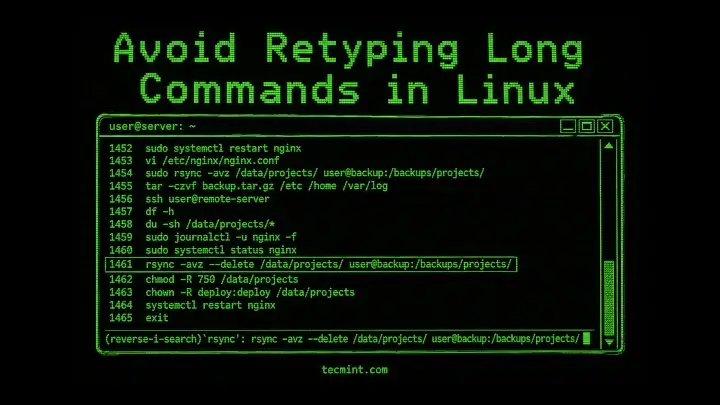
The Ctrl+R opens what Bash calls a reverse incremental search, meaning it searches backward through your history as you type, narrowing the match with every character. You don’t have to remember the full command, just a distinctive fragment of it, and Bash finds the most recent match instantly.
Press Ctrl+R in your terminal and you’ll see the prompt change:
(reverse-i-search)`':
Start typing any part of the command you want, say rsync:
(reverse-i-search)`rsync': rsync -avz --progress /var/backups/ [email protected]:/mnt/backup/
Bash shows the most recent command containing that string, so press Enter to run it immediately, or press the right arrow key to drop it onto your active prompt where you can edit it before running. If the first match isn’t the one you want, press Ctrl+R again to cycle backward through older matches.
To exit the search without running anything, press Ctrl+G or Ctrl+C.
Ctrl+S to search forward again. On some systems, Ctrl+S freezes the terminal instead. If that happens, run stty -ixon in your current session, or add it to your ~/.bashrc to make it permanent.echo "stty -ixon" >> ~/.bashrc && source ~/.bashrc
If this saved you from retyping a command for the fifth time this week, share it with someone on your team who still uses the up arrow.
Why Ctrl+R Doesn’t Find All Commands in Bash
The Ctrl+R searches your ~/.bash_history file, and that file has limits worth knowing. By default, Bash stores 500 commands in memory during a session and writes 500 lines to ~/.bash_history when the session ends, overwriting the oldest entries.
If you work across multiple terminal windows, each one writes its own history on exit, and they can overwrite each other.
You can check your current limits with:
echo "HISTSIZE=$HISTSIZE, HISTFILESIZE=$HISTFILESIZE"
Output:
HISTSIZE=1000, HISTFILESIZE=2000
The HISTSIZE is how many commands Bash keeps in memory during a session and in the history file on disk, so to increase the limite run:
echo 'HISTSIZE=10000' >> ~/.bashrc
echo 'HISTFILESIZE=20000' >> ~/.bashrc
source ~/.bashrc
Bash also skips duplicate commands by default on some systems, and you can control that with HISTCONTROL. If you want to avoid saving the same command repeatedly:
echo 'HISTCONTROL=ignoredups:erasedups' >> ~/.bashrc
source ~/.bashrc
Let me explain the command:
ignoredupsskips saving a command if it’s identical to the one immediately before it.erasedupsremoves all earlier duplicates of the command from history whenever it’s run again.
If you see (reverse-i-search) returning nothing for a command you definitely ran, the most likely reason is that it fell off the end of your history file or was run in a different shell session that overwrote it.
How to Edit Previous Commands Using fc in Linux
The fc is a shell built-in that stands for fix command, which pulls a command out of your history and opens it in your default text editor so you can make changes before running it.
This is the right tool when Ctrl+R finds your command but the edits you need are more than a few characters, because editing a long command inline on the terminal prompt is painful.
Run fc with no arguments and it opens the last command in your editor:
fc
Your editor opens, usually vi unless you’ve set $EDITOR. You make your changes, save, and quit. The edited command runs immediately on exit.
To open a specific command by history number, first check your history:
history | tail -20
Output:
487  rsync -avz /var/backups/ [email protected]:/mnt/backup/
  488  df -h
  489  journalctl -u nginx --since "2024-01-01" --until "2024-01-31" -o short-precise
  490  systemctl restart nginx
  491  history | tail -20
To reopen command 489 in your editor:
fc 489
Your editor opens with that full journalctl command. Change the date range, save, quit, and it runs.
Tip: Set your preferred editor in your ~/.bashrc so fc uses it instead of defaulting to vi or vim, micro, code, or whatever you actually use..
export EDITOR=nano
How to Use fc to Run a Range of Commands
The fc can also run a range of history entries in sequence, which is less common but useful when you ran a series of setup commands and need to re-execute them on a different server.
fc 487 490
Output:
rsync -avz /var/backups/ [email protected]:/mnt/backup/
df -h
journalctl -u nginx --since "2024-01-01" --until "2024-01-31" -o short-precise
systemctl restart nginx
Bash opens all 4 commands in your editor, so you can reorder them, delete lines you don’t need, or change arguments before running and when you save and quit, Bash runs every line.
How to Combine Ctrl+R and fc Together
The two tools work best as a pair. Use Ctrl+R to locate the command fast, then if the edit is more than a word or two, press Escape or the right arrow to land it on your prompt, then type fc on the next line to open the previous command in your editor.
Or use the shortcut directly: after Ctrl+R finds your command, press Ctrl+R to confirm the match without running it, then immediately run fc to edit it.
The workflow is:
Ctrl+Rto find the command.- Right arrow to bring it to the prompt (without running).
Ctrl+Cto cancel without running.fcon the next command to open the previous line in the editor.
That combination covers 90% of the “I need that long command again, but slightly different” situations.
Conclusion
You learned how Ctrl+R opens a reverse incremental search through your Bash history so you can find any command by typing a fragment of it, how pressing Ctrl+R again cycles through older matches, and how the right arrow key lands a match onto your prompt for editing before running.
You also learned how fc pulls any history entry into your text editor for full changes, how fc -s old=new does a fast inline substitution without opening an editor, and how running fc with a range re-executes a block of prior commands all at once.
Pick the simplest thing from this article and do it right now: press Ctrl+R in your current terminal and type the name of a command you ran today and watch it appear. Then press the right arrow, make a small change, and run it. That 10-second exercise will make the muscle memory stick faster than reading about it ever will.
Have you used fc in production, or is Ctrl+R the one you actually reach for? Tell us in the comments below.